Using dcclib with LM Studio (MCP)
dcclib provides a Model Context Protocol (MCP) server that exposes all CLI capabilities (validation, conversion, extraction, transformation, signing) as structured tools for LLMs.
This guide explains how to connect dcclib to LM Studio as a local MCP server.
Configuration in LM Studio
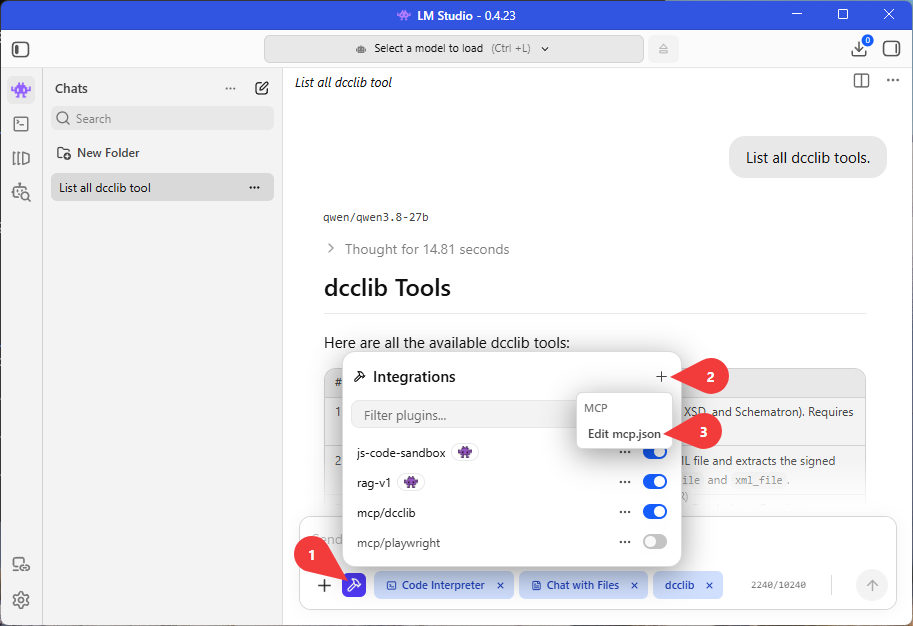
Open the MCP Configuration
- Click on the hammer icon in the bottom of a chat.
- Click on the plus icon in the top right corner.
- Click on Edit mcp.json.
Add the dcclib MCP-Server
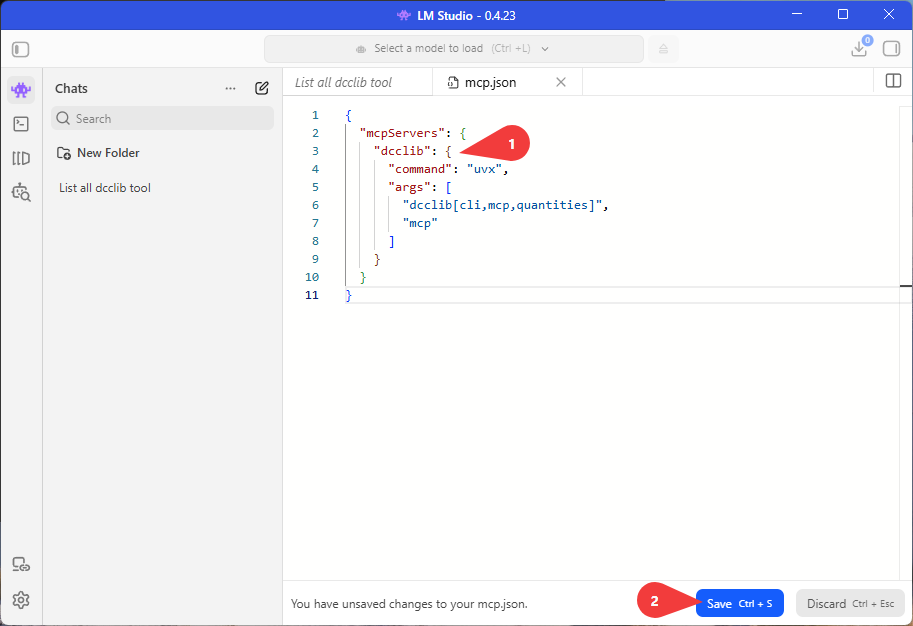
- Add the
dcclibserver to themcpServersobject inmcp.json
Global / PATH Installation
If you have installed dcclib globally, you can use the following configuration:
{
  "mcpServers": {
    "dcclib": {
      "command": "dcclib",
      "args": ["mcp"]
    }
  }
}
Using uvx (No pre-installation needed)
If you don't want to install dcclib globally, you can use the following configuration:
{
  "mcpServers": {
    "dcclib": {
      "command": "uvx",
      "args": [
        "dcclib[cli,mcp,quantities]",
        "mcp"
      ]
    }
  }
}
Using HTTP
Alternatively, start the server yourself with dcclib mcp --transport http and point LM Studio at its URL:
{
  "mcpServers": {
    "dcclib": {
      "url": "http://127.0.0.1:8000/mcp"
    }
  }
}
- Save and verify
Using Tools in Chat
- Load a tool-compatible model in LM Studio.
- Ensure tools are toggled on in your chat session.
- You can now prompt the model to perform operations directly on your DCC files, for example:
- "Validate
/path/to/certificate.xmlagainst the DCC 3.3.0 schema." - "Convert
/path/to/certificate.xmlto JSON." - "Extract embedded files from
/path/to/certificate.xmlinto/path/to/output/."